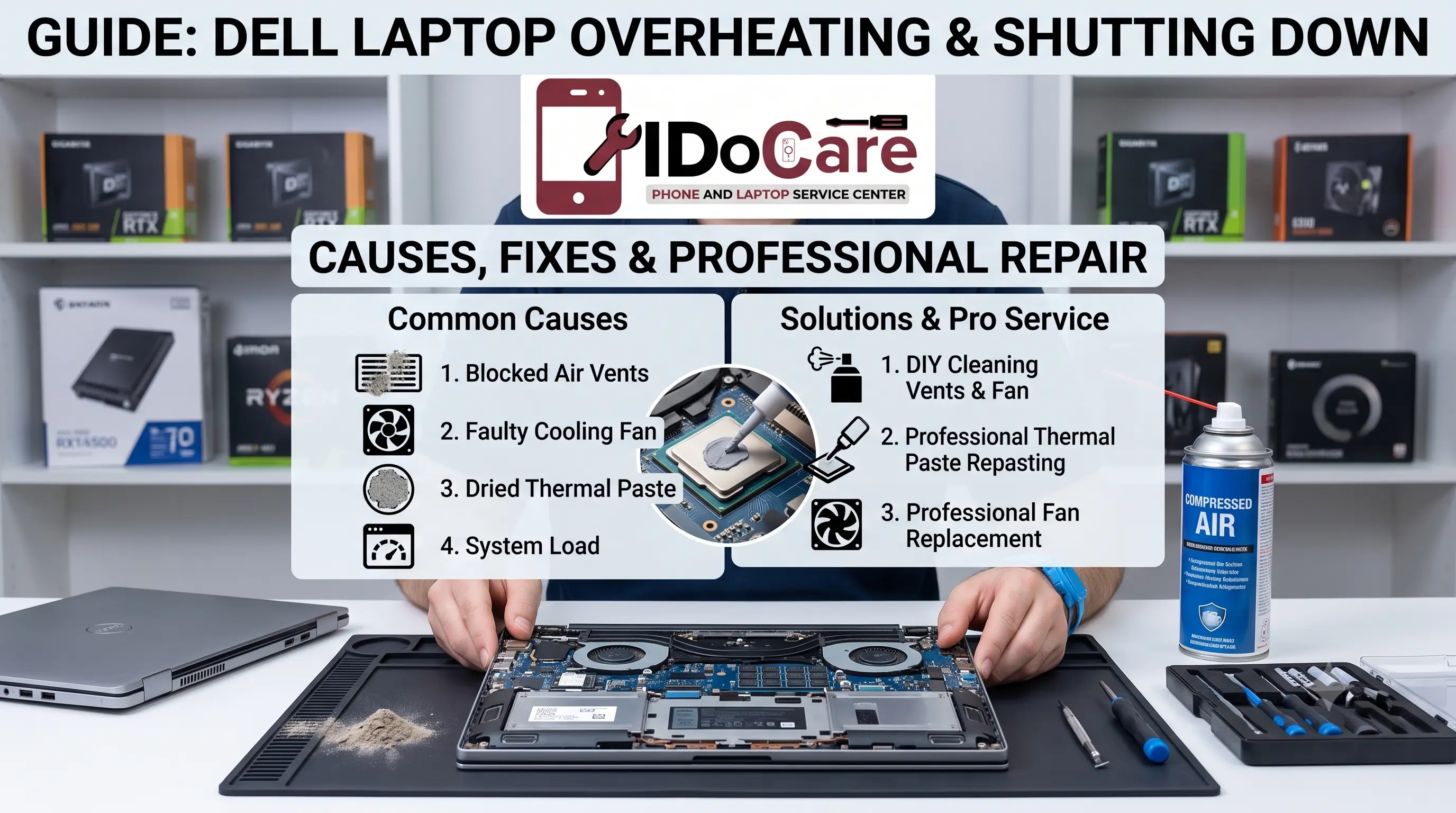
Dell Laptop Overheating and Shutting Down? Causes, Fixes & Professional Repair Guide
Introduction
Is your Dell laptop getting unusually hot, becoming slow, or suddenly shutting down? Overheating is more than an inconvenience. It can affect performance, damage internal components, and cause unexpected shutdowns.
Common causes include blocked air vents, dust buildup, a failing cooling fan, dried thermal paste, heavy workloads, battery or charging issues, and software-related problems.
The good news is that many overheating problems can be identified and fixed before they become serious. This guide explains the main causes of Dell laptop overheating and automatic shutdowns, safe troubleshooting steps, and when professional Dell laptop repair is the better option.
1. Why Is Your Dell Laptop Overheating and Shutting Down?
A Dell laptop generates heat whenever its processor, graphics chip, storage, and other components are working. The cooling system normally moves this heat away through the fan, heatsink, and ventilation system.
Problems occur when the laptop cannot remove heat efficiently.
Typical warning signs include:
- Laptop becoming very hot during normal use
- Fan running loudly or continuously
- Sudden performance slowdown
- Laptop freezing during demanding tasks
- Unexpected shutdowns or restarts
- Keyboard or palm rest becoming unusually warm
- Fan making grinding or unusual noises
- Laptop shutting down while gaming or using demanding applications
- Charging becoming slower when the laptop is hot
An automatic shutdown can be a protective response. When internal temperatures become too high, the system may shut itself down to prevent hardware damage.
2. Common Causes of Dell Laptop Overheating
Dust and Blocked Air Vents
Dust can accumulate around the cooling fan, heatsink, and ventilation openings. This restricts airflow and prevents hot air from escaping.
Using a Dell laptop on a bed, sofa, blanket, or other soft surface can also block the bottom vents.
Faulty or Weak Cooling Fan
The cooling fan is responsible for moving hot air away from internal components. If the fan is damaged, slow, noisy, or completely stopped, temperatures can rise quickly.
A defective fan may need professional inspection or replacement.
Dried or Poor Thermal Paste
Thermal paste transfers heat between the processor and heatsink. Over time, thermal paste can dry out or lose effectiveness.
Replacing old thermal paste can improve heat transfer when the cooling system is otherwise functioning correctly.
Heavy CPU or GPU Usage
Gaming, video editing, 3D applications, large software builds, and multitasking can place significant load on the processor and graphics hardware.
High temperatures during heavy workloads can be normal, but persistent overheating and shutdowns should not be ignored.
Background Applications
Sometimes applications running in the background consume excessive CPU resources.
Windows updates, browser tabs, startup applications, antivirus scans, and poorly optimized software can contribute to increased heat generation.
Outdated Drivers or BIOS
Incorrect or outdated BIOS, chipset, graphics, or thermal-management drivers can sometimes contribute to abnormal system behavior.
Software should be updated carefully using compatible Dell-supported versions.
Battery or Charging Problems
A damaged battery, faulty charger, charging circuit issue, or abnormal power consumption can also produce excess heat.
If overheating occurs primarily while charging, the power system should be inspected rather than assuming the cooling fan is the only problem.
Hardware or Motherboard Problems
If the laptop continues to overheat after cleaning and cooling-system maintenance, the problem may involve the motherboard, power-management circuit, temperature sensor, processor, or another internal component.
This situation requires professional diagnostics.
3. Safe Fixes You Can Try at Home
Before taking the laptop for repair, several basic checks can help identify the problem.
Keep the Laptop on a Hard Surface
Place the Dell laptop on a desk or another hard, flat surface. Avoid beds, cushions, blankets, and other materials that can block ventilation.
Check the Air Vents
Look for visible dust or obstructions around the intake and exhaust vents.
Do not insert sharp objects into the vents or attempt to dismantle the laptop unless you are experienced with laptop hardware.
Check Task Manager
Press Ctrl + Shift + Esc to open Windows Task Manager.
Check the CPU and Memory columns for applications consuming unusually high resources.
If an unfamiliar application is constantly using significant CPU resources, investigate it before terminating important Windows processes.
Reduce Unnecessary Background Apps
Disable unnecessary startup applications and close programs that you are not using.
This can reduce processor workload and help control operating temperatures.
Update Windows and Drivers
Install appropriate Windows updates and Dell-supported driver or BIOS updates.
Avoid downloading BIOS or hardware drivers from unknown third-party websites.
Use the Correct Charger
Use a compatible Dell charger with the appropriate power rating. An incorrect or damaged charger can create charging and performance problems.
Allow the Laptop to Cool
If the laptop becomes extremely hot and shuts down, turn it off and allow it to cool naturally before restarting.
Repeatedly powering on an overheating laptop is not a good long-term solution.
4. When Home Troubleshooting Is Not Enough
Basic cleaning and software checks may solve mild overheating. However, professional repair is recommended when the problem continues.
Consider professional Dell laptop repair if:
- The laptop shuts down repeatedly
- The cooling fan does not spin
- The fan produces grinding or clicking sounds
- The laptop becomes extremely hot within a few minutes
- The system shuts down during normal browsing
- The laptop overheats even after cleaning the vents
- The battery becomes unusually hot or swollen
- The charging port becomes hot
- The laptop shows thermal or hardware errors
- There is visible liquid damage
- The device has suffered a drop or physical damage
A proper diagnostic process can identify whether the issue is caused by the fan, heatsink, thermal paste, battery, motherboard, software, or another component.
Professional servicing may include internal dust cleaning, cooling fan inspection, thermal paste replacement, heatsink inspection, temperature testing, battery diagnostics, and motherboard-level troubleshooting when required.
5. Dell Laptop Overheating: Symptoms, Causes and Solutions
| Symptom | Possible Cause | Recommended Solution |
|---|---|---|
| Laptop becomes hot during normal use | Dust, poor airflow or background load | Check vents and system usage |
| Fan constantly runs at high speed | High CPU load or cooling problem | Check Task Manager and cooling system |
| Fan is noisy | Damaged or worn fan | Inspect or replace cooling fan |
| Laptop shuts down during gaming | Excessive temperature or GPU load | Check cooling system and temperatures |
| Laptop overheats while charging | Battery, charger or power circuit issue | Inspect charger and battery |
| Laptop is slow and hot | Thermal throttling | Diagnose temperature and CPU load |
| Fan does not spin | Fan failure or connection problem | Professional fan inspection |
| Overheating continues after cleaning | Thermal paste, heatsink or hardware issue | Professional diagnosis |
| Battery becomes very hot | Battery or charging fault | Stop using if abnormal and seek inspection |
| Laptop shuts down randomly | Thermal, power or motherboard issue | Full hardware diagnostics |
6. Professional Dell Laptop Repair and Preventive Maintenance
If your Dell laptop repeatedly overheats and shuts down, replacing individual parts without diagnosis may not solve the underlying problem.
A professional repair assessment should begin with identifying the source of the heat and determining whether the cooling system is operating correctly.
Cooling System Inspection
The fan, heatsink, thermal interface, vents, and airflow path should be checked.
Internal Cleaning
Dust and debris can be removed from the internal cooling system using appropriate repair procedures.
Thermal Paste Service
If thermal paste has deteriorated, replacing it can help improve heat transfer between the processor and heatsink.
Cooling Fan Replacement
A defective or failing fan may need replacement with a compatible component.
Battery and Charging Diagnostics
If overheating occurs during charging, the battery, adapter, charging port, and power-related components should be examined.
Motherboard-Level Diagnosis
Persistent overheating, abnormal power consumption, or shutdowns can sometimes indicate a motherboard or power-management issue. These cases require more advanced diagnostics.
Temperature and Stability Testing
After repair, the laptop should be tested under normal and higher workloads to verify that temperatures, fan operation, charging, and system stability are behaving correctly.
For users looking for Dell laptop repair in Bangalore, iDoCare can provide professional inspection and repair assistance for overheating, fan problems, battery issues, charging faults, and other laptop hardware problems.
Dell Laptop Overheating Prevention Tips
You can reduce the chance of future overheating by following a few simple habits:
- Keep ventilation openings clear.
- Use the laptop on a hard, flat surface.
- Clean the cooling system periodically.
- Avoid using the laptop on beds or blankets for long periods.
- Keep Windows and compatible drivers updated.
- Remove unnecessary startup applications.
- Avoid blocking the exhaust vent.
- Use a compatible Dell charger.
- Monitor unusual fan noise.
- Do not ignore repeated automatic shutdowns.
- Get the cooling system inspected when temperatures remain unusually high.
Regular maintenance can help improve cooling performance and extend the usable life of your Dell laptop.
Frequently Asked Questions
Why does my Dell laptop overheat and suddenly shut down?
The most common reasons include blocked vents, dust buildup, a faulty cooling fan, dried thermal paste, excessive CPU/GPU usage, battery problems, or internal hardware faults. Automatic shutdown can occur when the system reaches a critical temperature.
How do I stop my Dell laptop from overheating?
Start by using it on a hard surface, keeping the vents clear, checking CPU usage, closing unnecessary applications, and ensuring Windows and compatible Dell drivers are updated. If the problem continues, have the cooling system professionally inspected.
Can dust cause a Dell laptop to shut down?
Yes. Significant dust buildup can restrict airflow, reduce cooling performance, and cause temperatures to rise. In severe cases, thermal protection can trigger an automatic shutdown.
Should I replace the Dell laptop fan?
If the fan is not spinning, is unusually noisy, or cannot maintain proper cooling despite cleaning, replacement may be necessary. A technician should confirm the fan is actually defective before replacing it.
Does changing thermal paste fix laptop overheating?
It can help when the existing thermal paste has deteriorated or the heat transfer between the processor and heatsink is poor. However, thermal paste replacement will not fix every overheating problem.
Why does my Dell laptop overheat while charging?
Possible causes include battery degradation, charger problems, high system load, blocked airflow, charging circuitry issues, or a cooling-system fault. If the battery becomes unusually hot, professional inspection is recommended.
Is it normal for a Dell laptop to get warm?
Some heat is normal, especially during gaming, video editing, charging, or other demanding workloads. However, extreme heat, loud continuous fan operation, performance throttling, or repeated shutdowns indicate that the system should be checked.
Can overheating damage my Dell laptop?
Repeated excessive temperatures can contribute to hardware degradation and reduce component reliability. An automatic thermal shutdown is a warning that should not be repeatedly ignored.
When should I take my Dell laptop for repair?
If your Dell laptop repeatedly shuts down, overheats during light use, has a non-working fan, shows charging-related heat, or remains hot after basic troubleshooting, professional diagnostics are advisable.
Professional Dell Laptop Overheating Diagnosis
At iDoCare, laptop overheating is approached as a diagnostic problem rather than simply a cleaning issue. A laptop can become hot because of airflow restrictions, fan failure, thermal-transfer problems, software load, battery conditions, charging faults, or deeper hardware issues.
The right repair therefore starts with identifying the actual cause.
A professional inspection can help determine whether the Dell laptop requires cooling-system cleaning, fan service, thermal paste replacement, battery diagnostics, charging-system inspection, or motherboard-level repair.
For Dell laptop repair in Bangalore, iDoCare focuses on practical diagnosis, transparent repair recommendations, and proper testing before returning the device to the customer.
Final Takeaway
A Dell laptop that becomes excessively hot and shuts down should not be treated as a minor performance issue. Dust, restricted airflow, fan failure, thermal paste, battery problems, software load, and hardware faults can all contribute to overheating.
Start with safe checks such as improving airflow and reducing unnecessary system load. If the laptop continues to overheat or shut down, professional diagnostics can identify the actual cause and prevent the problem from becoming more serious.
Need help with a Dell laptop overheating or shutdown problem in Bangalore? Contact iDoCare for professional laptop inspection, cooling-system service, fan replacement, battery diagnostics, and other Dell laptop repair solutions.